50 “Scan to…” Call to Action Lines That Get People to Scan Your QR Code
In this article
Quick Summary: A printed QR code without an explanatory caption is one of the most common reasons customers ignore counter standees and flyers. Adding a specific three-part call to action that tells customers exactly what they will receive and how quickly it opens gives people a clear reason to take out their smartphone camera and scan.
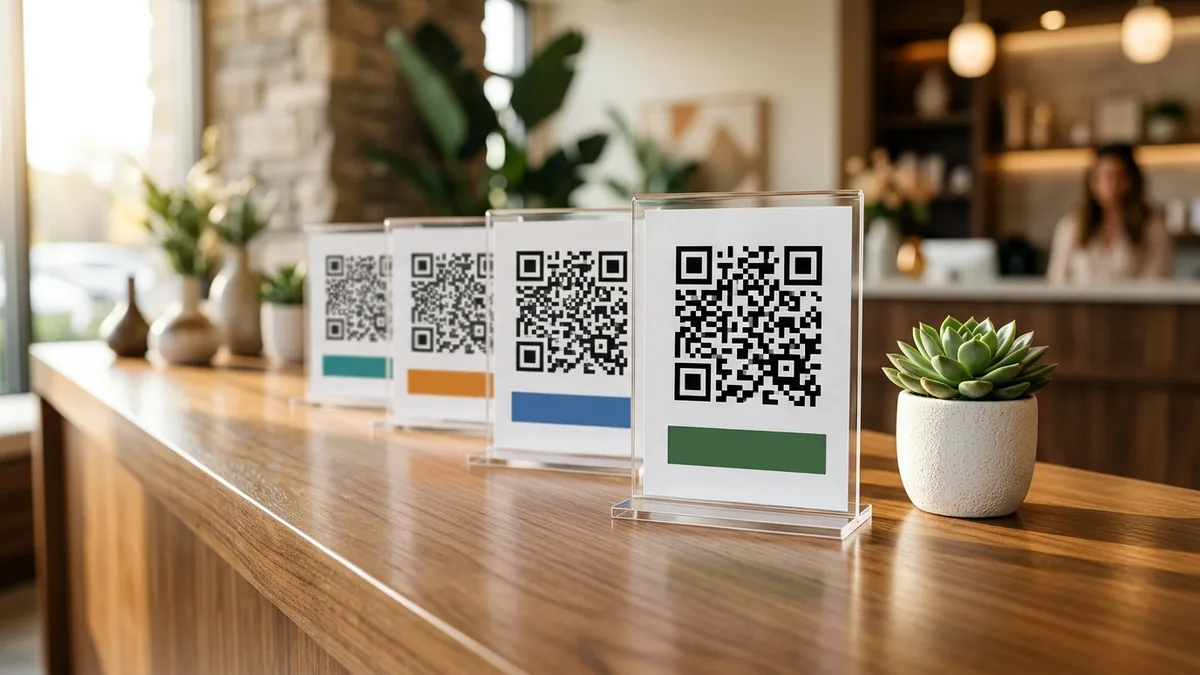
Walk into ten retail stores, cafes, or dental clinics across any Indian city, and you will see the same recurring scene: a black-and-white square QR code printed on an acrylic standee or taped to the cash desk, with either no words at all or a generic two-word phrase: “Scan Me”.
Most customers walk right past it. Why? Because a bare QR code does not answer the fundamental question running through every customer’s mind: “What happens if I scan this, and why should I bother?”
In an age where smartphone users are cautious about unfamiliar links and phishing, people rarely scan a mystery code. But when you replace a silent box with a clear, benefit-driven caption, your scan completion rates rise immediately. Here are fifty tested, trade-specific “Scan to…” call to action lines you can print directly onto your visiting cards, table tents, invoice footers, and counter stands.
The three-part formula for a QR code call to action
High-converting QR code captions are not clever slogans or marketing fluff. They are clear functional instructions built on three concrete elements:
- The Action Verb: Start with an active directive (Scan, Tap, Point your camera).
- The Immediate Deliverable: Tell the customer the exact item or destination they will land on (today’s lunch specials, our Google review page, our direct WhatsApp chat).
- The Friction Remover: Mention the time commitment or app compatibility (takes 20 seconds, works with any UPI app, no sign-up required).
Weak: “Scan Me” (Zero context, zero value, feels like spam).
Strong: “Scan to pay with any UPI app (GPay, PhonePe, Paytm). Zero extra charges.” (Tells the customer the action, the supported apps, and removes price anxiety).
10 call to action lines for UPI payment QR codes
When collecting payments, your caption must reassure customers that their preferred payment app will work smoothly without processing fees. Pair these captions with codes created on our free UPI QR code generator:
- Line 1 (Retail / Counter):
Scan to pay with any UPI app: Google Pay, PhonePe, Paytm, or BHIM. - Line 2 (Cafe / Bakery):
Scan with your phone camera or any UPI app to settle your bill in 10 seconds. - Line 3 (Invoice Footer):
Scan to pay exact balance of ₹8,500 for INV-1042 with your preferred bank UPI app. - Line 4 (Doctor / Clinic):
Scan to complete consultation payment via UPI. Instant digital bank receipt. - Line 5 (Delivery Van / Box):
Scan to pay on delivery with any UPI app. No cash or loose change needed. - Line 6 (Salon / Wellness):
Scan to pay your treatment fees directly via UPI. Fast, secure, and touch-free. - Line 7 (Tuition / Academy):
Scan to submit monthly batch fees via UPI. Reference student roll number in note. - Line 8 (Consulting Firm):
Scan to transfer advisory retainer fees directly to Jay Associates current account. - Line 9 (Auto Workshop):
Scan to pay for vehicle servicing and parts via any UPI app. Verified payee: Jay Motors. - Line 10 (Pop-up Stall):
Scan to pay via UPI. We accept Google Pay, PhonePe, Paytm, and all banking apps.
8 call to action lines for Google reviews (within Google’s guidelines)
Google’s official merchant policies strictly forbid offering discounts, free products, or cash incentives in exchange for reviews. Never write “Scan for 10% off your next meal”. Instead, appeal to genuine feedback and customer experience using our Google review QR and request generator:
- Line 11 (Restaurant / Dining):
Enjoyed your meal at Jay Cafe? Scan to share your review on Google. It takes 30 seconds! - Line 12 (Dental Clinic / Hospital):
Help others find trusted dental care. Scan to leave Dr. Jay an honest Google review. - Line 13 (Salon / Spa):
Loving your new hairstyle? Scan here to rate your stylist on Google. - Line 14 (Hotel / Homestay):
Had a comfortable stay with us? Scan to share your travel feedback on Google Maps. - Line 15 (Car Workshop):
How was your car service today? Scan to let our mechanic team know on Google. - Line 16 (Fitness Studio):
Proud of your workout progress? Scan to share your gym experience on Google. - Line 17 (Boutique / Apparel):
Found your perfect outfit? Scan to review our collection and service on Google. - Line 18 (General Retail Counter):
We are a local family business. Scan to support us with a quick Google review.
10 call to action lines for WhatsApp orders and inquiries
When routing prospects to WhatsApp, pair your code with pre-filled messaging using our free WhatsApp link generator so customers feel comfortable starting a chat:
- Line 19 (Real Estate Signboard):
Scan to chat on WhatsApp for floor plans, video walkthrough, and price sheets. - Line 20 (Bakery / Custom Cakes):
Scan to send your custom cake design on WhatsApp. Get an instant quote. - Line 21 (Restaurant Table Tent):
Need an extra plate or water? Scan to message your table captain on WhatsApp. - Line 22 (Doctor / Follow-up):
Existing patient? Scan to message our clinic reception on WhatsApp for follow-ups. - Line 23 (Boutique / Fashion):
Scan to chat with our personal stylist on WhatsApp for custom sizing and colors. - Line 24 (Catering Service):
Planning an event? Scan to discuss party menus and per-plate pricing on WhatsApp. - Line 25 (Interior Designer):
Scan to share your floor plan on WhatsApp for a complimentary design estimate. - Line 26 (Optician / Eyewear):
Scan to send your optical prescription on WhatsApp for home frame trials. - Line 27 (Pet Grooming):
Scan to book your dog's grooming slot on WhatsApp. Quick confirmation. - Line 28 (Chartered Accountant):
Scan to message Jay Associates on WhatsApp regarding company registration queries.
6 call to action lines for saving digital contact details
Printing a QR code on a physical visiting card is standard practice, but a bare code leaves people wondering what it does. Clearly state that scanning adds you to their phone contacts:
- Line 29 (Executive Card):
Scan to save Jay JJ's phone, email, and office address directly to your contacts. - Line 30 (Field Sales Rep):
Scan to save my complete contact card to your phone in one tap. No typing needed. - Line 31 (Real Estate Broker):
Scan to add me on WhatsApp and save my property catalog to your smartphone. - Line 32 (Doctor / Specialist):
Scan to save clinic emergency numbers and appointment desk details to contacts. - Line 33 (Lawyer / Advocate):
Scan to save chamber address, office direct line, and consultation email. - Line 34 (Freelance Consultant):
Scan to view my verified portfolio and save my direct contact details.
To see how to position contact codes on physical cards without overcrowding the layout, read our guide on visiting card QR code sizing and print placement.
10 call to action lines for menus, Wi-Fi, and product catalogs
For high-frequency everyday actions like accessing guest Wi-Fi or opening food menus, clear guidance prevents awkward customer questions:
- Line 35 (Cafe Food Menu):
Scan to browse our full food, beverage, and dessert menu with prices on your phone. - Line 36 (Guest Wi-Fi Network):
Scan to connect to Jay Cafe Free High-Speed Wi-Fi instantly. No password typing required. - Line 37 (Seasonal Specials):
Scan to view today's chef specials and seasonal mango desserts. Updated daily. - Line 38 (Jewelry Showroom):
Scan to view our complete festive gold and diamond jewelry lookbook with certified weights. - Line 39 (Furniture / Decor):
Scan to view dimension specs, fabric color swatches, and 3D room placements. - Line 40 (Supermarket Aisle):
Scan for recipe inspiration and cooking instructions using this ingredient. - Line 41 (Electronics Store):
Scan to compare technical specifications, warranty terms, and unboxing videos. - Line 42 (Gym / Fitness Center):
Scan to view this week's group aerobics, yoga, and spinning class schedule. - Line 43 (Art Gallery / Museum):
Scan to read the artist biography, painting background, and artwork pricing. - Line 44 (Homestay Welcome Kit):
Scan for house guidelines, nearby sightseeing spots, and emergency numbers.
6 call to action lines for expo stalls and networking events
At busy exhibitions and trade expos, attendees walk past hundreds of booths. Give them a compelling reason to scan your stall banner before they walk away:
- Line 45 (B2B Expo Stall):
Scan to download our 2026 Wholesale Product Catalog and Price Sheet (PDF, 2 MB). - Line 46 (Tech Startup Booth):
Scan to book a 10-minute live software demo with our engineering team this week. - Line 47 (Job Fair / Recruitment):
Scan to view our 12 open engineering and sales roles and submit your resume. - Line 48 (Speaker Presentation Slide):
Scan to download today's presentation slides and reference reading list. - Line 49 (Trade Fair Contest):
Scan to enter our daily lucky draw. Win an annual professional subscription. - Line 50 (Franchise Opportunity):
Interested in opening a Jay Cafe franchise? Scan to download our business model overview.
Why “Scan Me” fails (and five captions to avoid)
While the fifty lines above work because they are specific, five common captions repeatedly fail to produce scans:
- “Scan Me”: Tells the user nothing about what is behind the code. In an era of online scams, scanning a blind code feels risky.
- “Scan Here”: Purely spatial instruction. The customer already sees where the code is; they want to know why they should scan it.
- “Click Here”: A careless copy-paste from website design. Customers scan physical objects with cameras; they do not click paper with a mouse.
- “Scan for More Info”: Vague and uninspiring. “More info” could mean anything from boring legal disclaimers to unwanted promotional newsletters.
- “Scan to Win Exciting Prizes”: Feels like spam marketing. Customers assume it is a lead-capture trap that will result in telemarketing calls.
Typography, font size, and placement rules under a QR code
Writing a great line is only half the battle. If the customer cannot read the text in normal lighting, the caption is wasted.
Follow these print rules:
- Minimum font size: On physical visiting cards, never set your caption smaller than 7 pt. On counter standees and table tents, keep captions at least 12 pt to 14 pt so customers can read them comfortably while seated.
- Position directly beneath or above: Place the caption within 5 mm to 8 mm of the QR code boundary. If the caption floats too far away, eyes do not connect the text to the square pattern.
- High contrast: Use dark charcoal or pure black text on a clean white or cream background. Avoid grey text on pastel backgrounds, which becomes unreadable under dim restaurant lighting.
- Use high-resolution static codes: Make sure the QR code itself is exported as a crisp vector SVG or high-res PNG from a permanent generator like the free QR code generator on beepscard.com so it never expires in print.
Frequently Asked Questions
Does adding text under a QR code affect its scanning speed?
No, provided you maintain the mandatory quiet zone. As long as you leave at least 4 modules of clean white space between the outer edges of the black QR matrix and your text caption, the camera sensor will decode the geometric pattern with zero interference.
Can I put the call to action above the QR code instead of below?
Yes. Placing the text directly above the code is effective on table tents and counter standees because customers read from top to bottom. They read the reason first (“Browse Our Lunch Menu”) and then scan the code directly below it.
Should I include brand logos inside the QR code alongside the caption?
A centered brand logo helps brand recall, but ensure the logo covers no more than 20% to 25% of the central area and that high error correction (Level H or Q) is enabled. The text caption beneath the code remains more important than the logo because it explains the destination value.
Is it better to print one QR code with multiple actions or separate codes?
Separate codes with dedicated captions are much better. If you place one code for payment, one for Google reviews, and one for WhatsApp orders on a counter standee, each with its own specific caption, customers scan exactly what they need without confusion.
Sources & Technical References
- Google Business Profile Help – Prohibited and restricted content policies on customer reviews and prohibited incentives, checked 30 October 2026.
- International Organization for Standardization – ISO/IEC 18004:2024 Information technology – QR Code symbology quiet zone and error correction standards, checked 30 October 2026.
- Beeps Card Editorial Standards – Methodology for retail signage testing and customer interaction benchmarks, checked 30 October 2026.

How to Write the One-Line Bio on Your Digital Visiting Card (With 24 Copy-Ready Examples by Profession)